More room around your subject
AI image expander for new sizes and layouts
Use the AI image expander to add space around your photo for text, banners, and new aspect ratios. Choose a size, extend the scene, and review the generated edges.
AI actions use credits from your balance. Background generation and expansion require sign-in and enough credits.
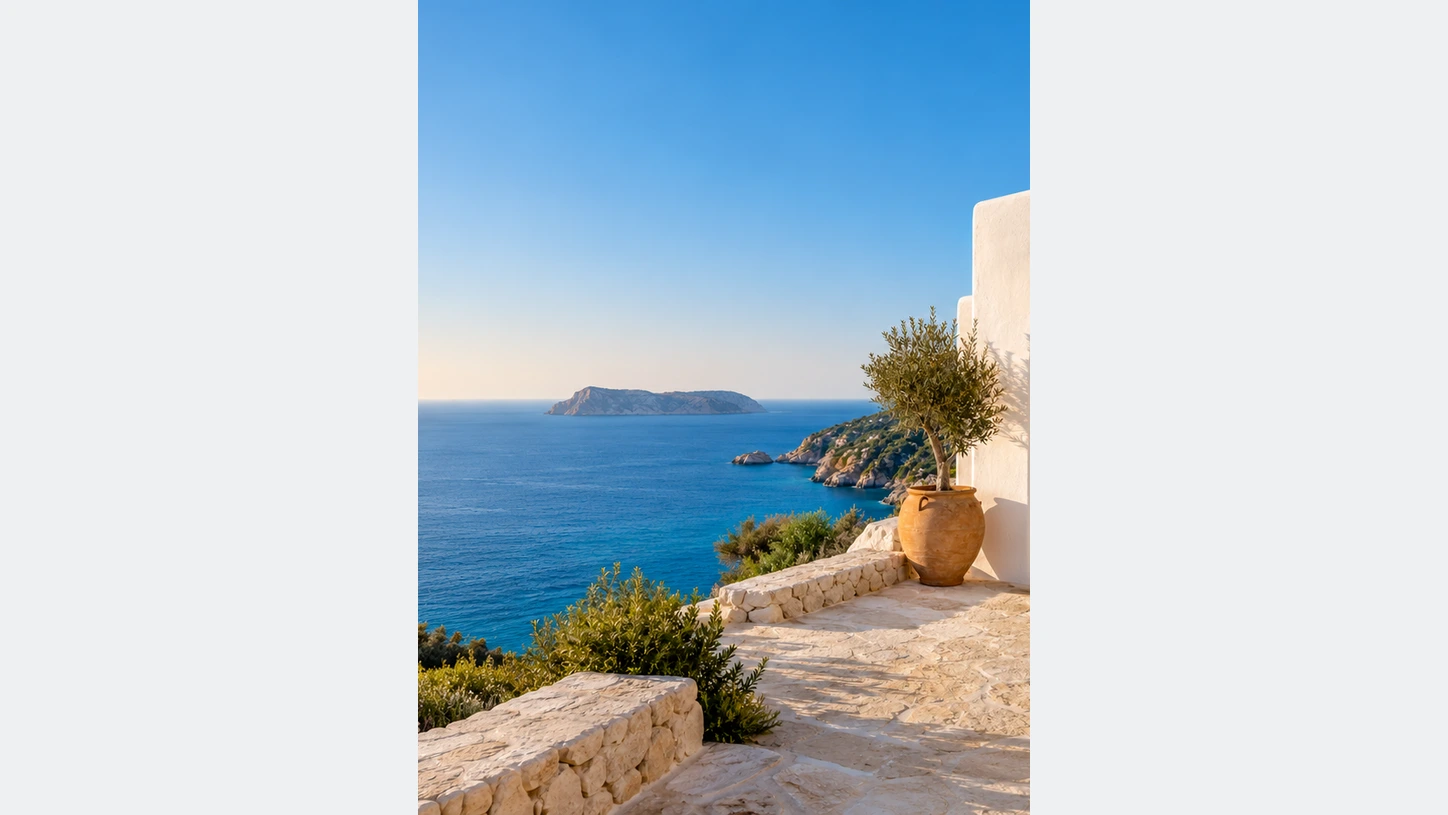
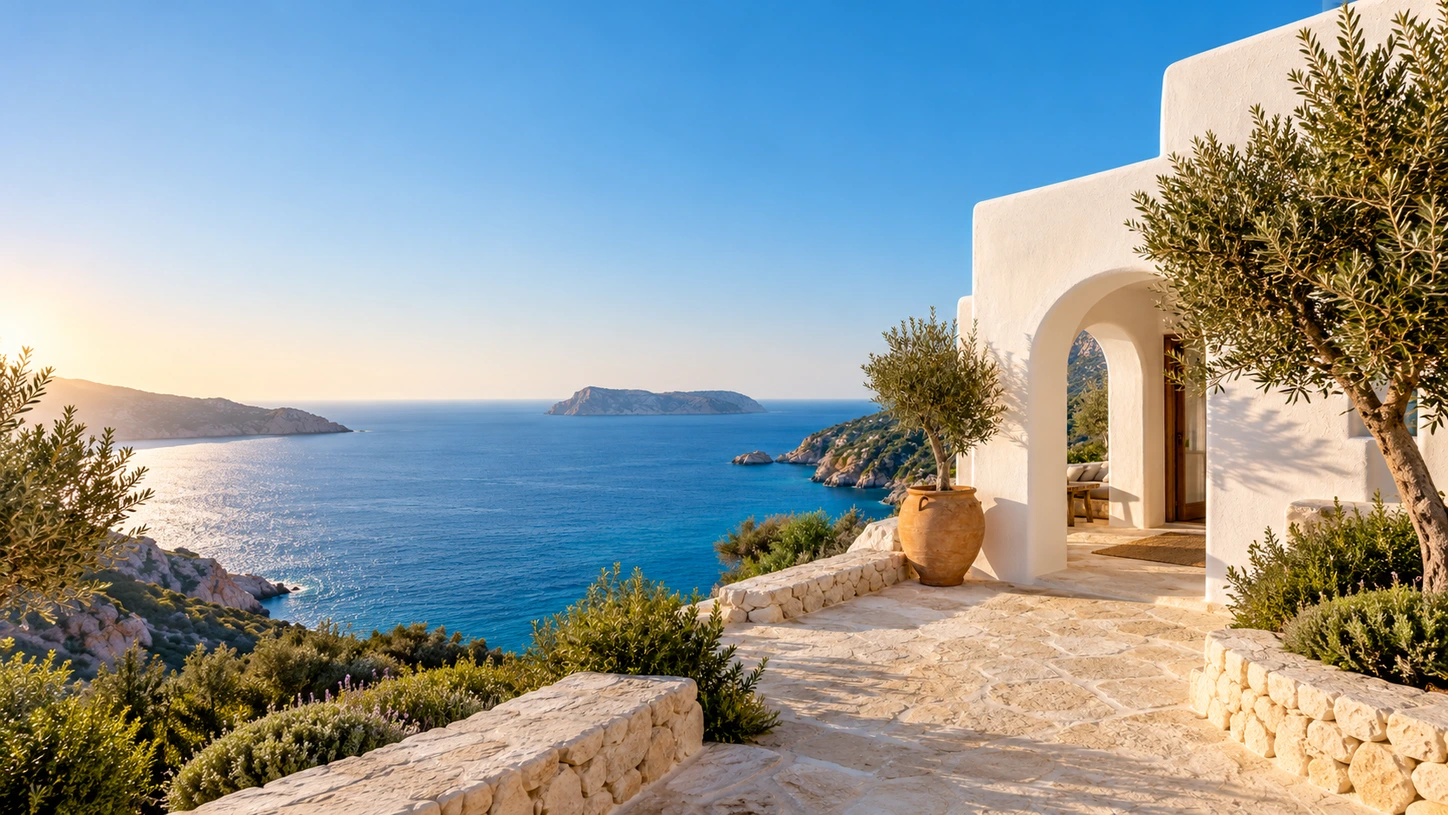
More canvas without cropping your subject
A tight photo rarely fits a wide banner or a tall story. Instead of cropping into the subject, the AI image expander generates new surroundings at the edges. Keep the original scene, or replace the background first, then expand it to the ratio each placement needs with room for your headline.
This is helpful for product photos taken too close, portraits that need headroom for a title, and landscape banners made from vertical shots. Expansion uses credits and needs a signed-in account; the editor shows the cost before anything runs. If the original setting is too busy to extend, place your cutout on a new backdrop and expand that scene instead.
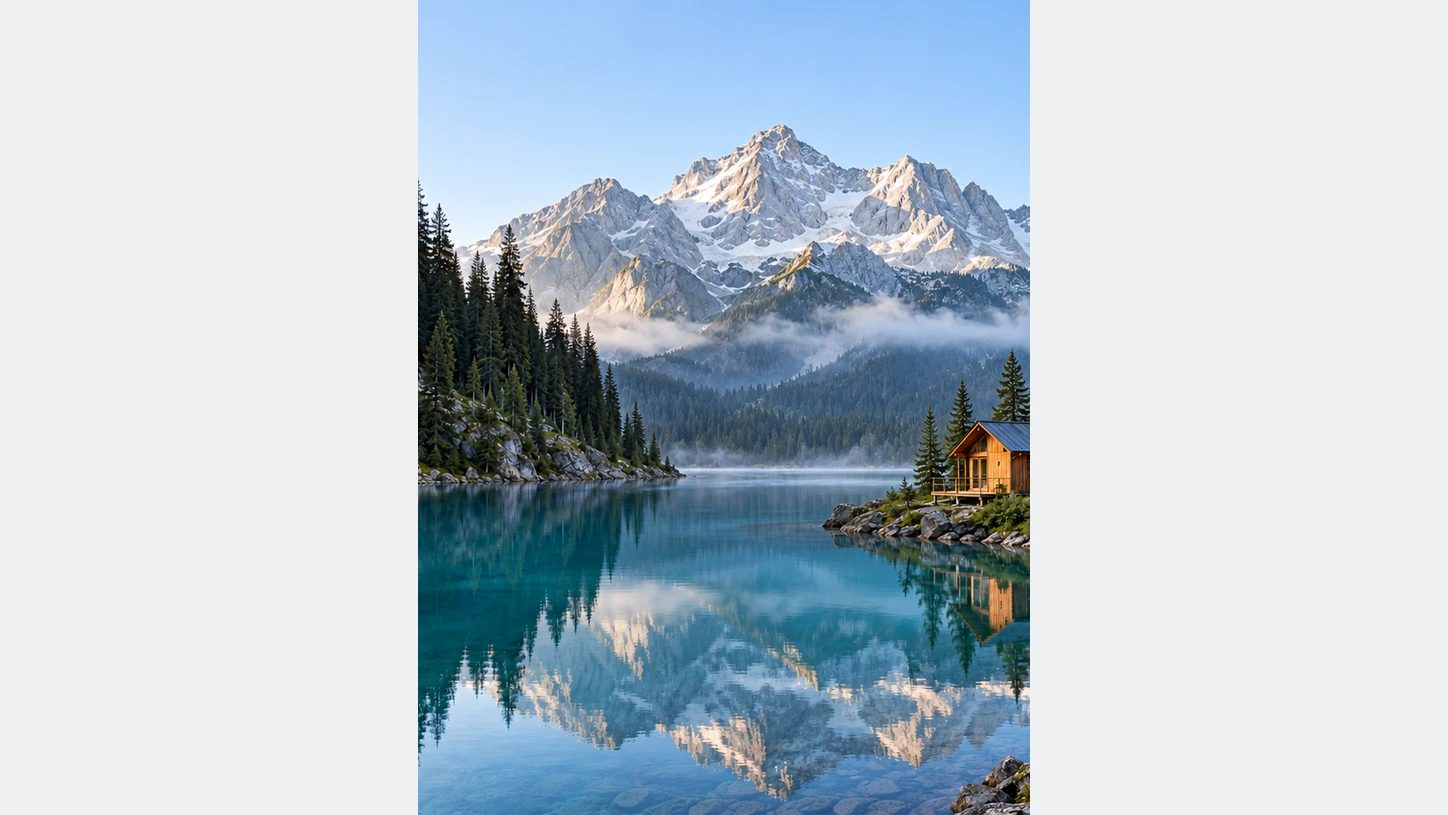
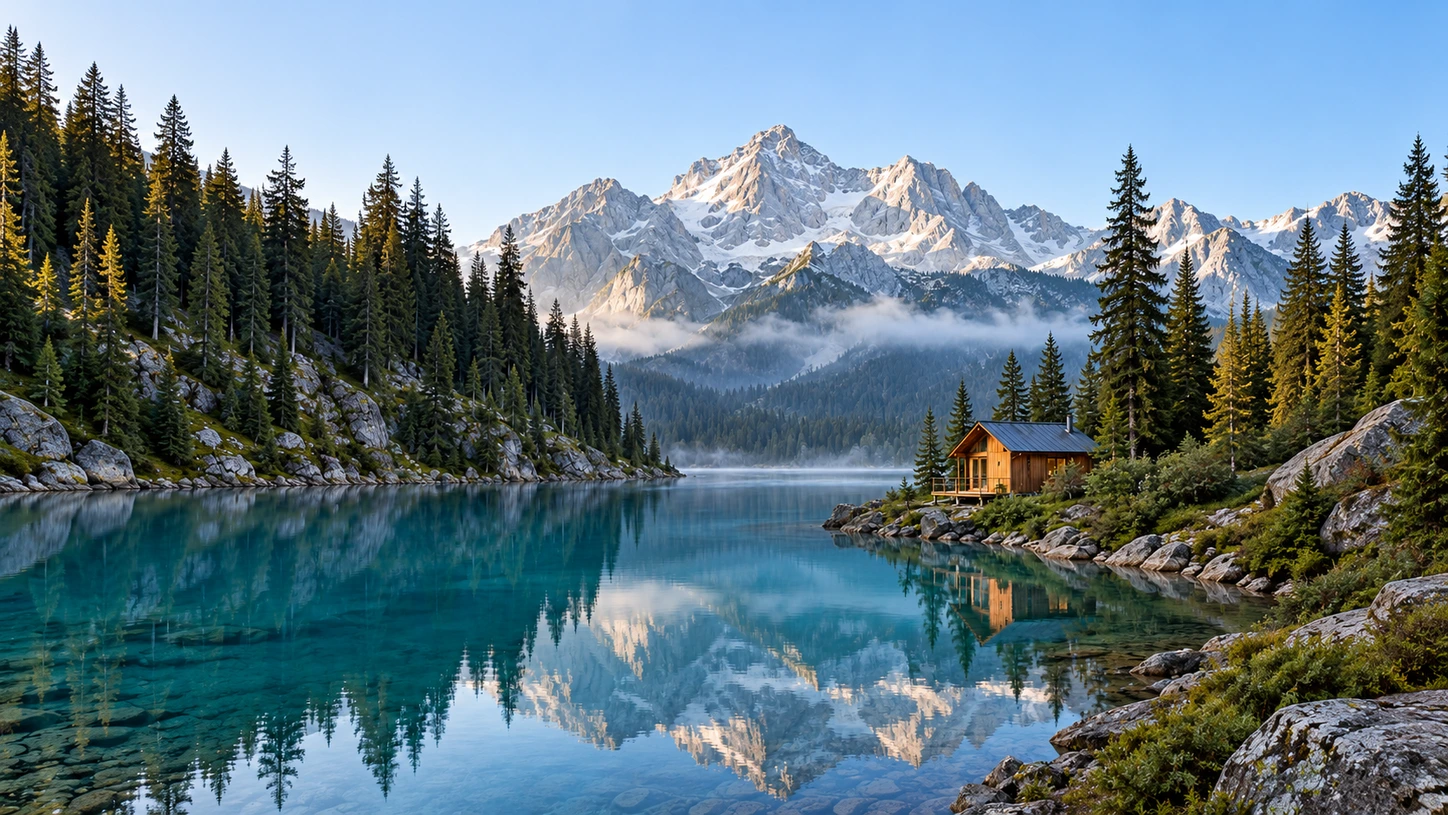
Add space where you need it
Pick a new aspect ratio and let AI fill the extra area around your photo. Keep the subject at full size while the canvas grows for text and layout.
Expand your image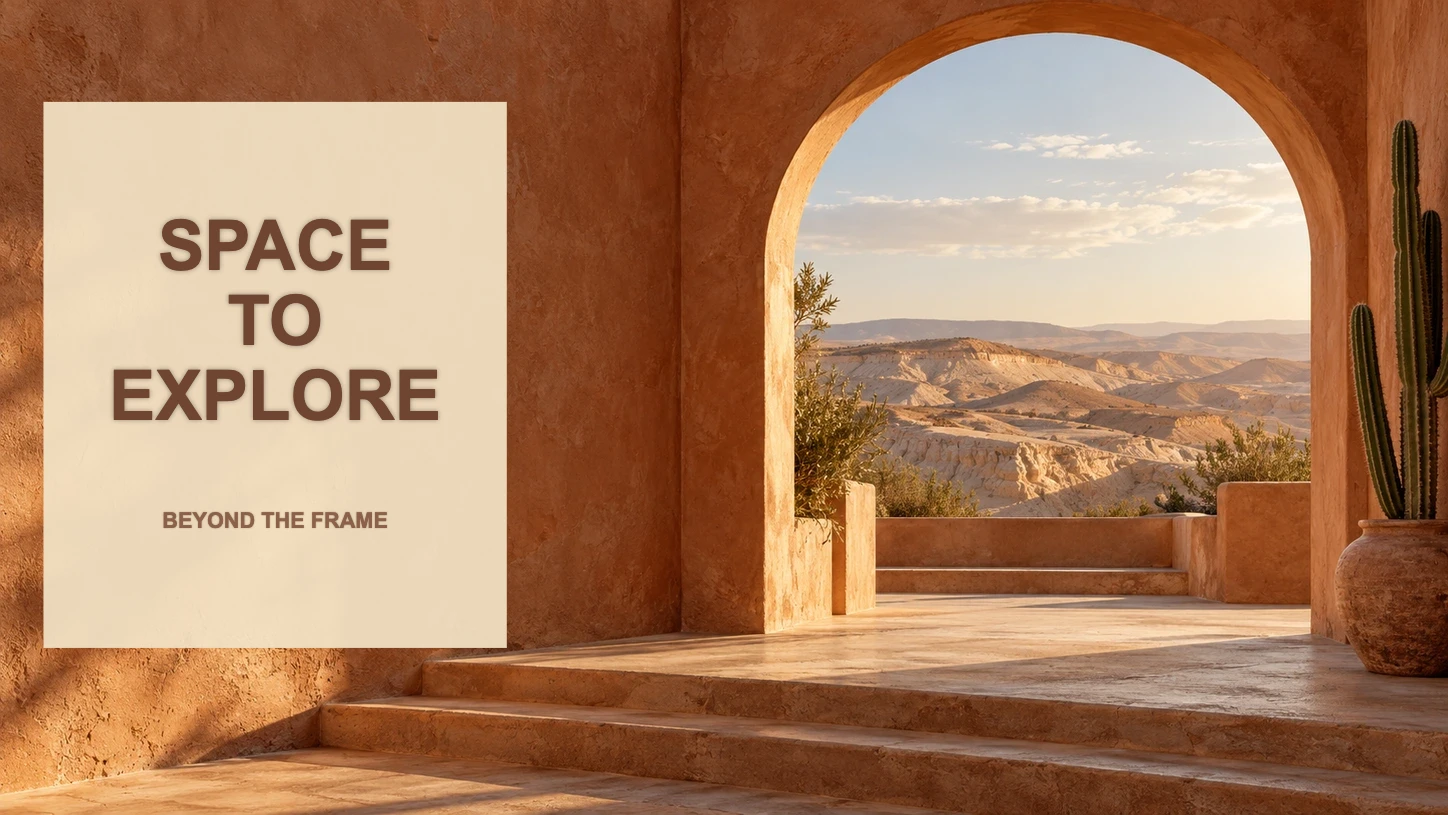
Finish the layout
Use the new space for a headline, an offer, or a logo. Combine the expanded image with your cutout and templates in one editor.
Explore templates and textFrom photo to finished image in three steps
- 01
Upload your photo
Keep the original scene or remove the background, then open the expand panel.
- 02
Choose a size and expand
Pick a ratio, check the credit cost shown, and let AI extend the image.
- 03
Review and download
Compare the result, add text if you like, and download PNG, JPG, or WebP.
Questions about BackgroundRemove
Will the expanded area look like the rest of the photo?
The AI continues colors, textures, and light from the original edges. Review the result and try again if a detail does not match.
Which sizes can I expand to?
Choose common ratios such as square, portrait, landscape, or story, or set a custom canvas. The credit cost is shown before you start.
Can I expand an image after removing its background?
Yes. Expand the original photo, or first place your cutout on a new background and then expand the finished composition to the size you need for a banner, story, or thumbnail.
How many credits does background removal use?
Background removal, AI background generation, and image expansion are separate actions with their own credit cost. The estimate is shown beside the action button before you confirm, and the per-credit price above is the cost of one credit, not a fixed price per image.
Which image types can I upload?
You can upload PNG, JPG, JPEG, WebP, or AVIF images.
Can I review the result before I download it?
Yes. Compare the original with the cutout, zoom in on the edges, and refine them with the brush before you download.