Your photo, with a different background
Portrait background remover for headshots
Remove the background from a selfie or headshot in seconds. Create a clean profile picture, try a new backdrop, then crop and download it for each profile you use.
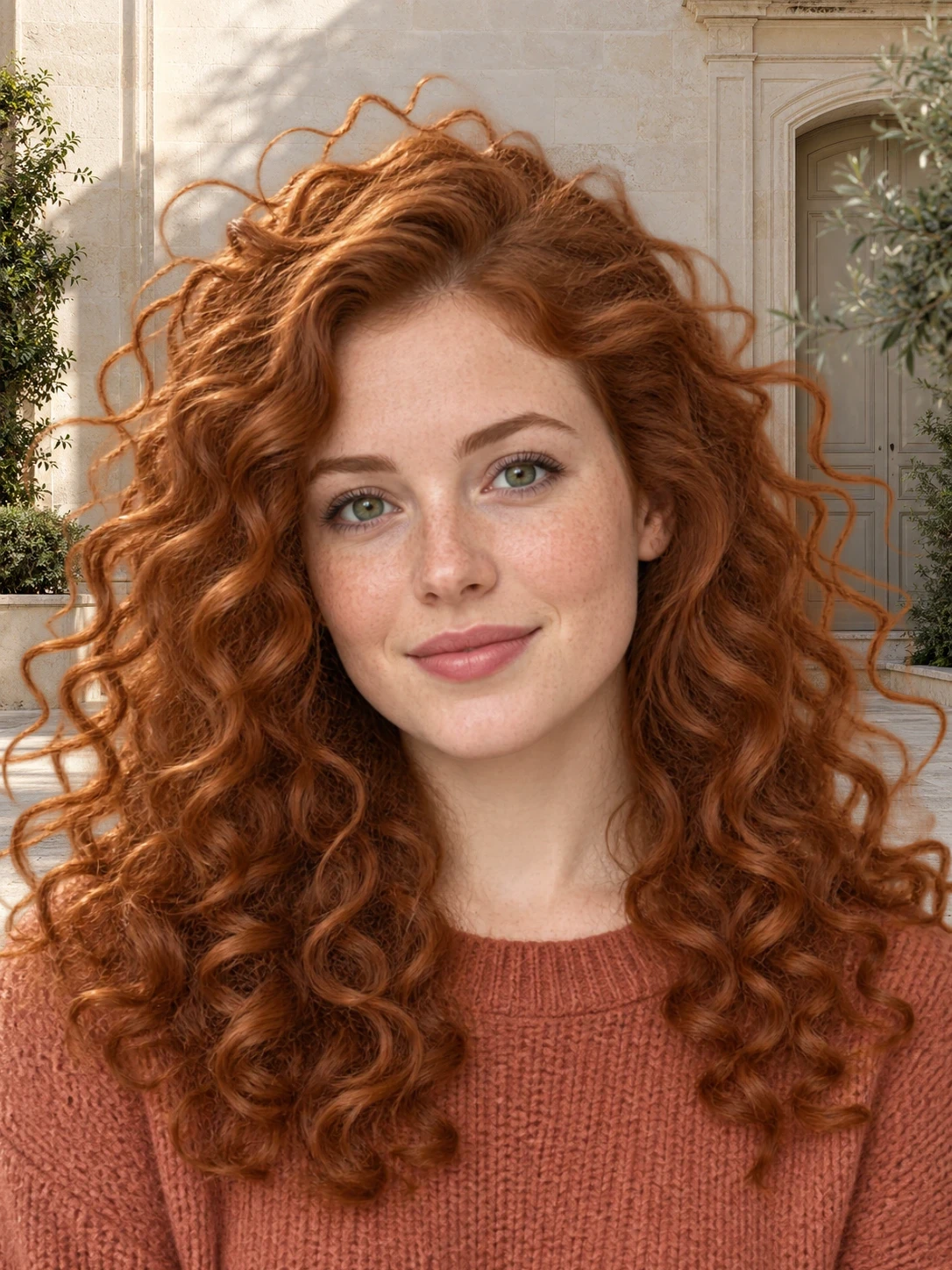
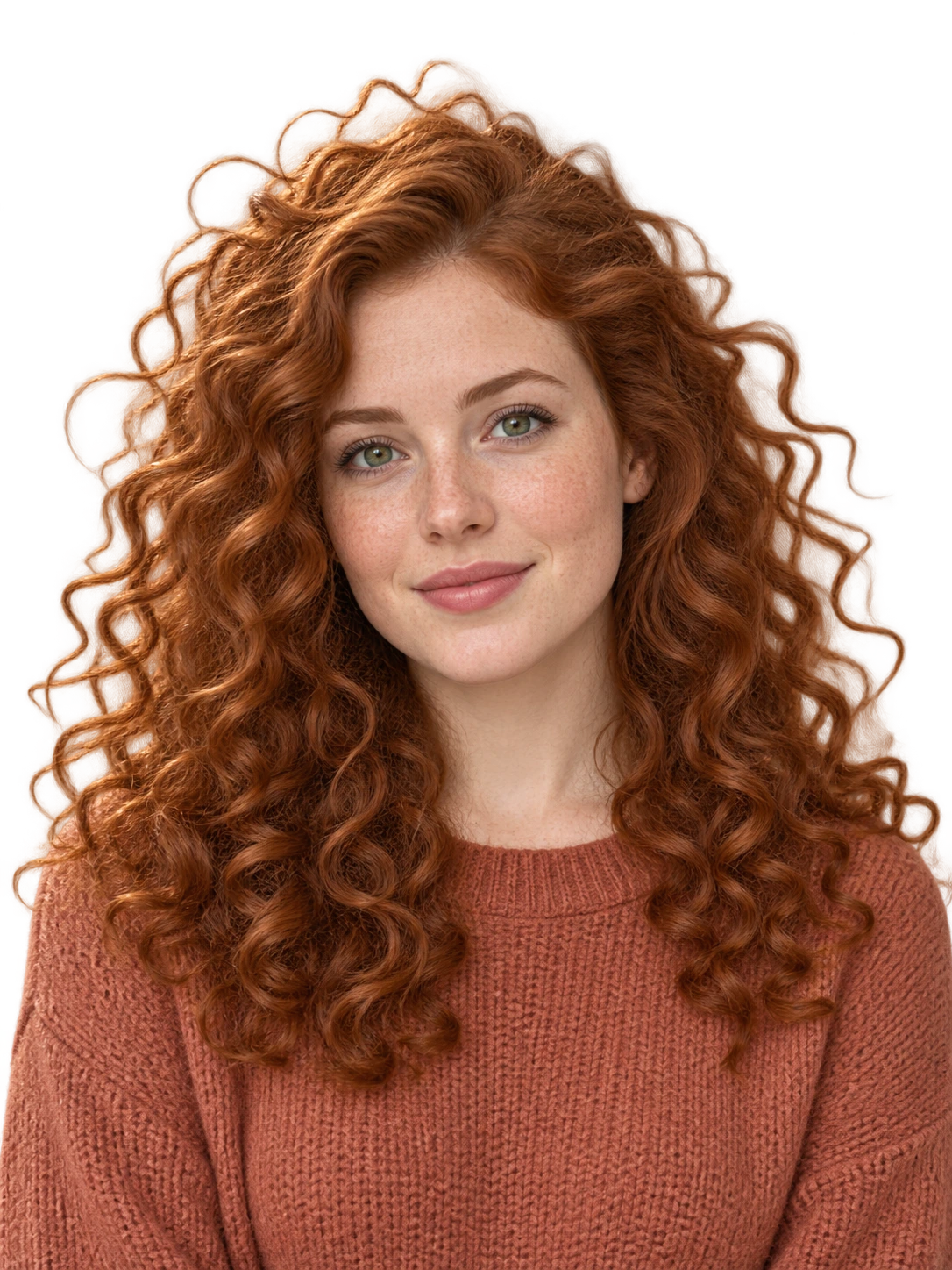
Put the focus on your profile photo
Most portraits are taken in kitchens, offices, or on the street, and the clutter pulls attention away from the face. The portrait background remover separates you from the room, keeping hair, shoulders, and clothing in the cutout. From there you can choose a calm color for a resume, a bright backdrop for social media, or a soft blur that still feels natural.
Everything happens in the browser. You do not need to install an app, learn masking, or send the photo to a retoucher. Upload the picture, wait for the cutout, and download a version for each profile you use.
A profile picture with the right framing
Remove the distractions behind you, then choose an aspect ratio and adjust the crop. Keep your face and shoulders centered for LinkedIn, a team page, or an ID-style photo.
Crop and place your image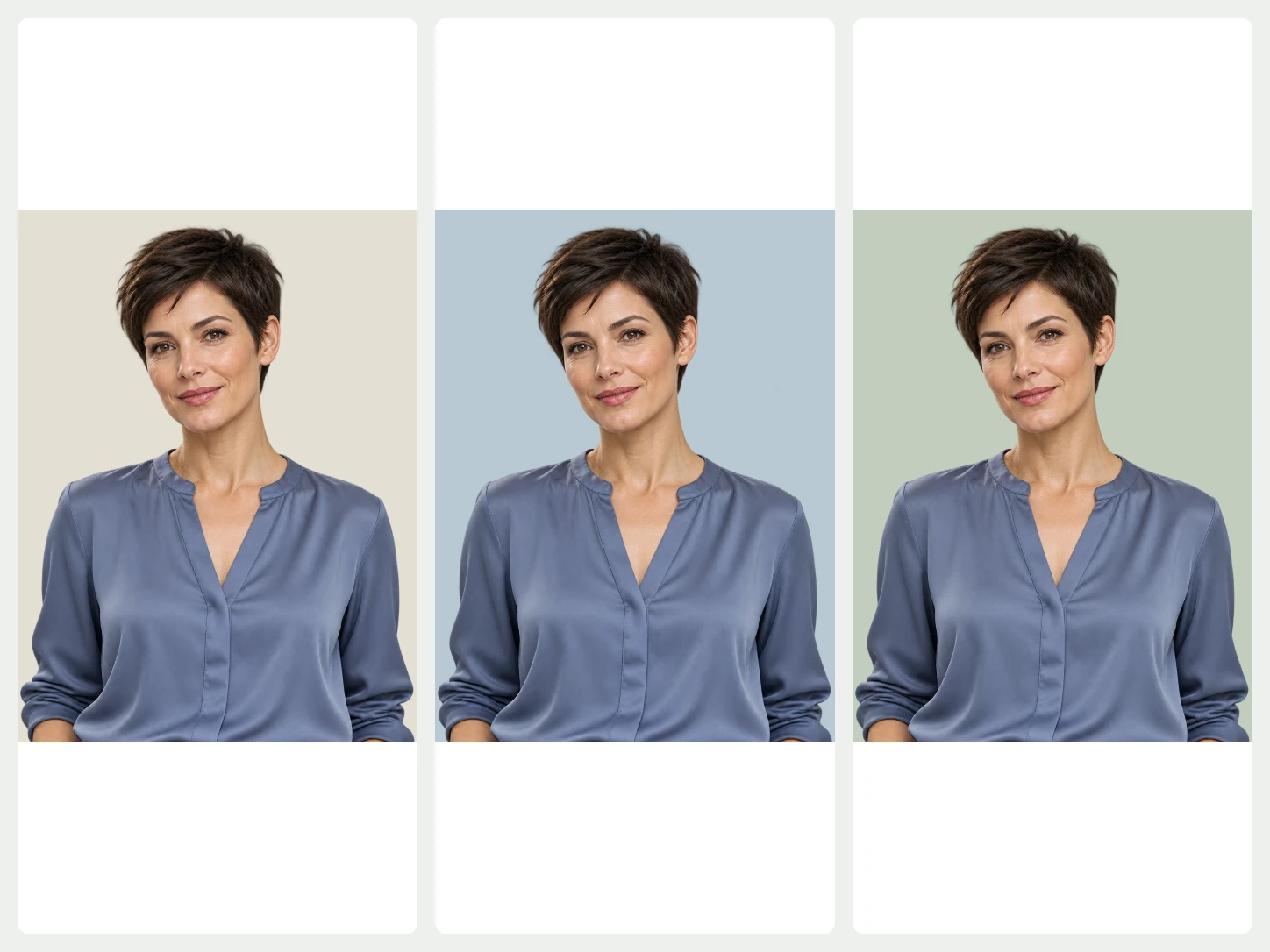
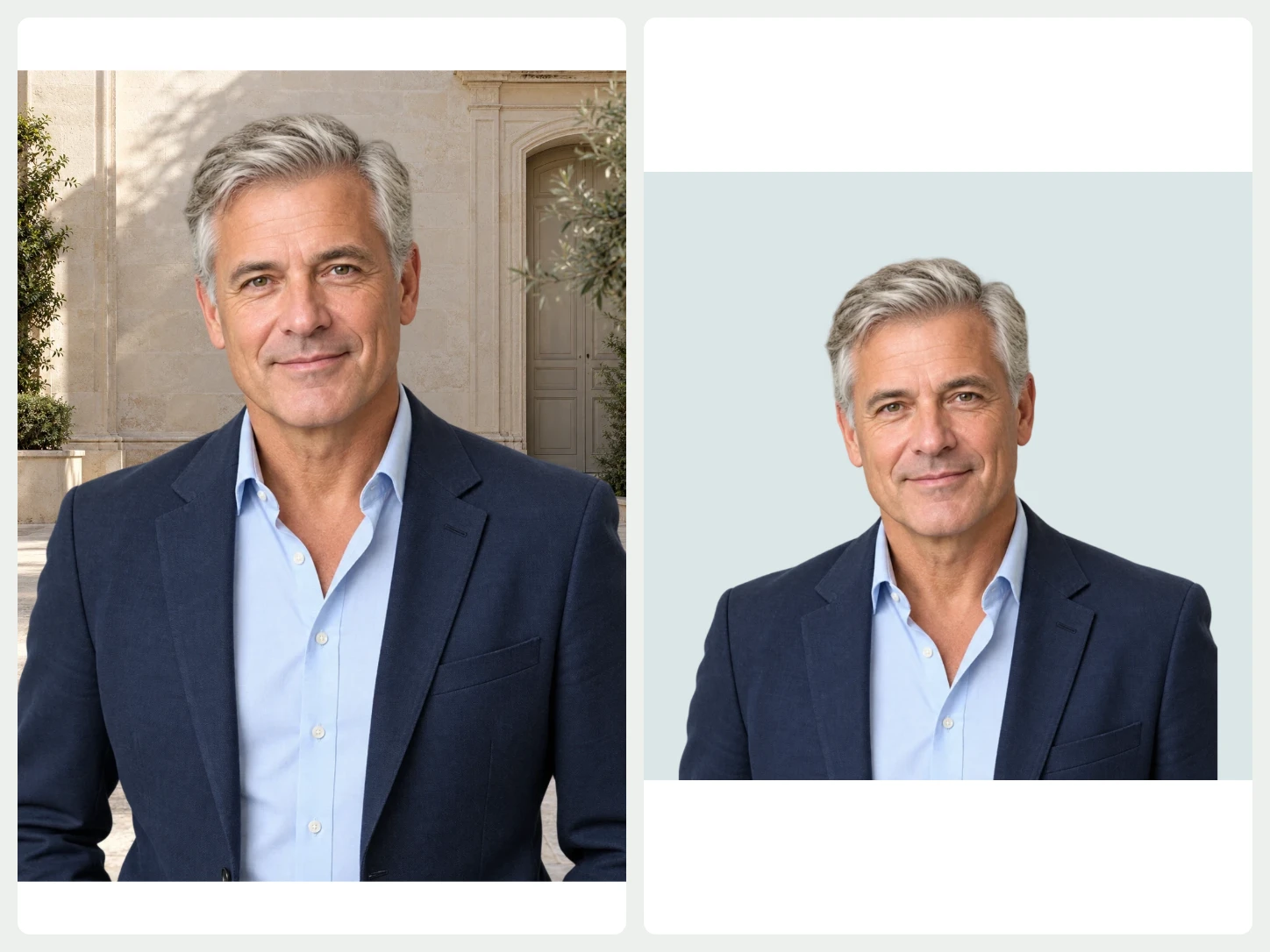
Try a different backdrop
Pick a background photo, a simple color, or upload your own setting. Swap looks as often as you like while the same portrait stays in place, and compare them before you decide.
Change the background

Keep the attention on you
Prefer the original location? Blur it instead of removing it and set the strength you want. Compare your edits side by side and undo anything you want to change.
Explore blur and shadowsFrom photo to finished image in three steps
- 01
Upload your photo
Choose one image and the background remover starts at once. For a whole set of photos, open Bulk Editing.
- 02
Edit the result
Keep it transparent or add a color, photo, or AI scene. Refine the cutout, crop it, or add text while you preview.
- 03
Download
Export PNG, JPG, or WebP. Pick PNG or WebP when you need a transparent background.
Questions about BackgroundRemove
Does changing the background change my face?
No. The editor places your own cutout over another background and never redraws you. Check the hair and clothing edges in the preview, then adjust or undo edits before downloading.
Which background works best for a professional headshot?
A plain light gray, white, or soft blue background is a safe choice for resumes and work profiles. Use the color panel after removing the background to try a few options.
Can I use the result as a passport or ID photo?
You can prepare a plain background and crop, but official photos have strict rules. Check the size, background color, and lighting requirements of the office that issues the document.
Can I upload more than one image?
The home page handles one image at a time. To remove backgrounds from several photos together, use Bulk Editing, which needs an account and image credits.
Which image types can I upload?
You can upload PNG, JPG, JPEG, WebP, or AVIF images.
Can I review the result before I download it?
Yes. Compare the original with the cutout, zoom in on the edges, and refine them with the brush before you download.